Cisco ISE Configuration Guide: 802.1X, Profiling, and Secure Access
Cisco Identity Services Engine (ISE) is the policy backbone of a zero trust network. It answers the fundamental question: who and what is connecting to my network, and what should they be allowed to do? Whether you are enforcing 802.1X authentication on wired switch ports, wireless SSIDs, or VPN connections through a Cisco FTD firewall, ISE is the centralized policy decision point that ties it all together.
This guide walks through a practical ISE deployment covering switch configuration, Windows supplicant setup, FMC/FTD integration for VPN, profiling basics, and the policy sets that make it all work. We assume ISE is already installed and licensed — this guide focuses on the configuration that matters.
What This Guide Covers
- Cisco switch configuration for 802.1X on wired access ports
- Windows 802.1X supplicant configuration for wired and wireless
- Wireless 802.1X with Cisco WLC
- RADIUS/VPN authentication with Cisco FMC and FTD
- ISE policy sets for wired, wireless, and VPN
- Profiling basics — identifying what is on your network
- What comes next: posture, compliance, and MDM integration
ISE Architecture Overview
At its core, ISE operates as a RADIUS server that makes access decisions based on identity and context. When a user or device attempts to connect — whether plugging into a switch port, joining a wireless network, or establishing a VPN tunnel — the network access device (NAD) sends a RADIUS Access-Request to ISE. ISE evaluates the request against its policy sets and returns an Access-Accept (with authorization attributes like VLAN, dACL, or SGT) or an Access-Reject.
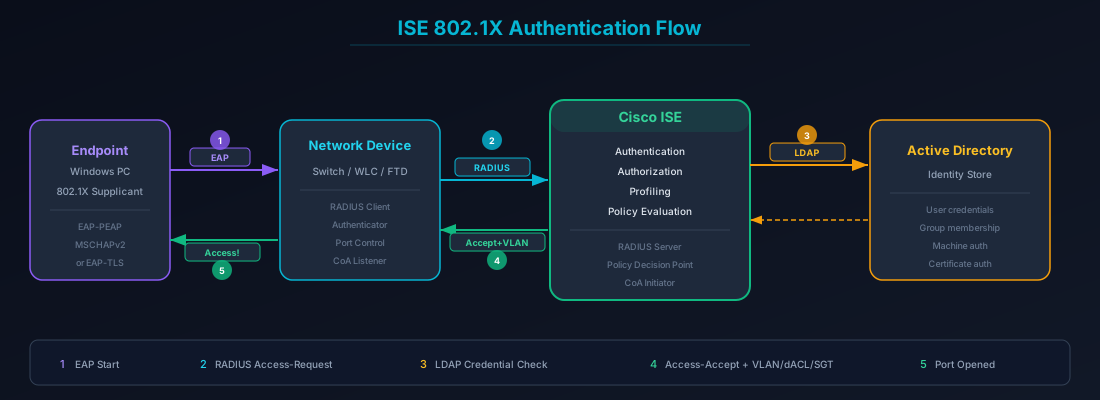
The key components:
- Authentication — verifying the user/device identity (who are you?)
- Authorization — determining what access to grant (what can you do?)
- Accounting — logging what the user did (audit trail)
- Profiling — identifying device type and posture (what are you?)
Part 1: Wired 802.1X — Switch Configuration
Enable AAA and RADIUS on the Switch
Before configuring individual ports, the switch needs global AAA and RADIUS configuration pointing to ISE.
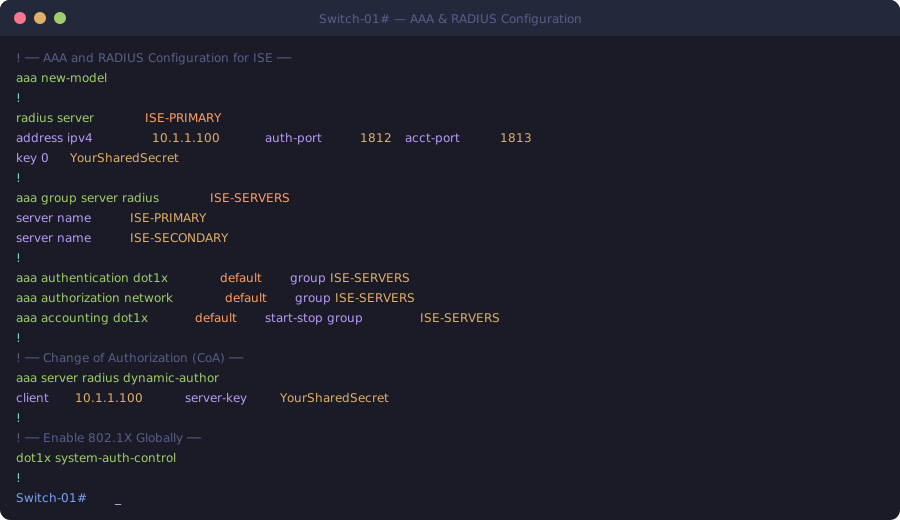
! Enable AAA globally
aaa new-model

! Define RADIUS server
radius server ISE-PRIMARY
  address ipv4 10.1.1.100 auth-port 1812 acct-port 1813
  key 0 YourSharedSecret

radius server ISE-SECONDARY
  address ipv4 10.1.1.101 auth-port 1812 acct-port 1813
  key 0 YourSharedSecret

! Create RADIUS server group
aaa group server radius ISE-SERVERS
  server name ISE-PRIMARY
  server name ISE-SECONDARY

! AAA authentication for dot1x
aaa authentication dot1x default group ISE-SERVERS

! AAA authorization for network access
aaa authorization network default group ISE-SERVERS

! AAA accounting
aaa accounting dot1x default start-stop group ISE-SERVERS

! Enable CoA (Change of Authorization) for dynamic policy updates
aaa server radius dynamic-author
  client 10.1.1.100 server-key YourSharedSecret
  client 10.1.1.101 server-key YourSharedSecret

! Enable dot1x globally
dot1x system-auth-control

! Enable device tracking for IP-to-MAC binding (required for profiling)
device-tracking policy IPDT-POLICY
  tracking enable

! Enable RADIUS attributes for profiling
radius-server attribute 6 on-for-login-auth
radius-server attribute 8 include-in-access-req
radius-server attribute 25 access-request include
radius-server dead-criteria time 30 tries 3
radius-server deadtime 15
Configure Access Ports for 802.1X
Apply 802.1X configuration to access ports where endpoints connect.
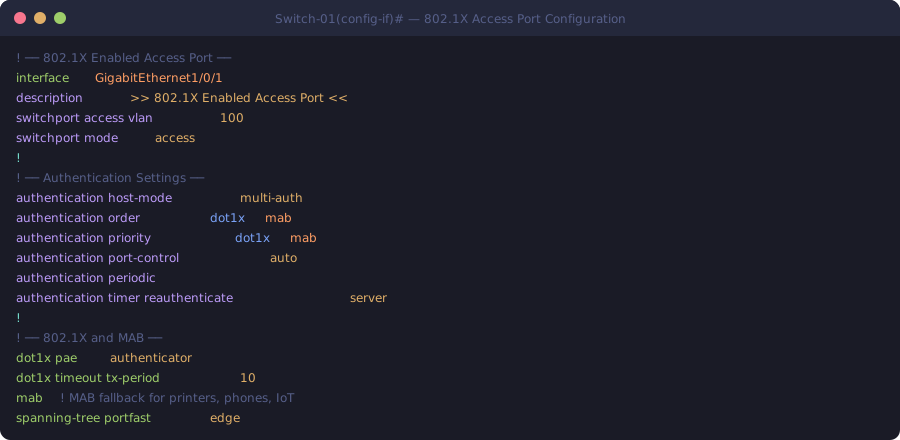
interface GigabitEthernet1/0/1
  description >> 802.1X Enabled Access Port <<
  switchport access vlan 100
  switchport mode access

  ! Enable device tracking on this port
  device-tracking attach-policy IPDT-POLICY

  ! 802.1X port configuration
  authentication host-mode multi-auth
  authentication order dot1x mab
  authentication priority dot1x mab
  authentication port-control auto
  authentication periodic
  authentication timer reauthenticate server

  ! Enable dot1x on the port
  dot1x pae authenticator
  dot1x timeout tx-period 10

  ! MAB fallback for non-802.1X devices (printers, phones, IoT)
  mab

  ! Spanning tree edge port
  spanning-tree portfast edge
Key design decisions:
authentication order dot1x mab— try 802.1X first, fall back to MAC Authentication Bypass (MAB) for devices that don’t support 802.1X like printers and IP phonesauthentication host-mode multi-auth— allows multiple devices on the same port (useful for IP phones with passthrough PCs)mab— enables MAB so ISE can profile and authorize non-802.1X devices based on their MAC address
Configure Trunk Ports (Skip 802.1X)
Trunk ports connecting to other switches, WLCs, or servers should NOT have 802.1X enabled.
interface GigabitEthernet1/0/48
  description >> Uplink to Core <<
  switchport trunk encapsulation dot1q
  switchport mode trunk
  switchport trunk allowed vlan 1,100,200,300
  ! No authentication commands here
Part 2: Windows 802.1X Supplicant Configuration
Windows has a built-in 802.1X supplicant, but it is disabled by default. Here is how to enable and configure it for both wired and wireless.
Enable the Wired AutoConfig Service
- Open Services (
services.msc) - Find Wired AutoConfig
- Set Startup type to Automatic
- Click Start
Or via PowerShell (run as Administrator):
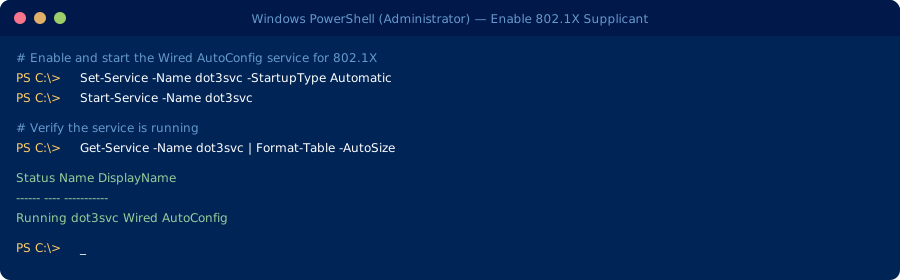
1Set-Service -Name dot3svc -StartupType Automatic
2Start-Service -Name dot3svc
Configure Wired 802.1X Authentication
- Open Network Connections (
ncpa.cpl) - Right-click your Ethernet adapter > Properties
- Go to the Authentication tab
- Check Enable IEEE 802.1X authentication
- Set authentication method to Microsoft: Protected EAP (PEAP)
- Click Settings:
- Check Verify the server’s identity by validating the certificate
- Select your ISE root CA under Trusted Root Certification Authorities
- Authentication method: Secured password (EAP-MSCHAPv2)
- Check Enable Fast Reconnect
- Click Configure next to EAP-MSCHAPv2:
- Check Automatically use my Windows logon name and password
Configure Wireless 802.1X (WPA2/WPA3-Enterprise)
- Open Settings > Network & Internet > Wi-Fi
- Click Manage known networks > Add a new network
- Configure:
- Network name: your SSID (e.g.,
Corp-Secure) - Security type: WPA2-Enterprise or WPA3-Enterprise
- EAP method: PEAP
- Authentication method: EAP-MSCHAPv2
- Check Connect automatically
- Network name: your SSID (e.g.,
Group Policy Deployment (Recommended for Scale)
For enterprise deployments, configure 802.1X via Group Policy:
- Open Group Policy Management (
gpmc.msc) - Create or edit a GPO linked to the OU containing your computers
- Navigate to: Computer Configuration > Policies > Windows Settings > Security Settings > Wired Network (IEEE 802.3) Policies
- Right-click > Create A New Wired Network Policy
- Configure:
- Enable Windows Wired AutoConfig service
- Authentication method: PEAP with EAP-MSCHAPv2
- Validate server certificate with your ISE CA
- Use Windows credentials automatically
Repeat the same under Wireless Network (IEEE 802.11) Policies for wireless 802.1X.
Part 3: Wireless 802.1X with Cisco WLC
On the Cisco Wireless LAN Controller, create a WLAN profile with 802.1X authentication pointing to ISE.
Add ISE as RADIUS Server on WLC
Navigate to Security > AAA > RADIUS > Authentication and add:
- Server IP: 10.1.1.100 (ISE Primary)
- Shared Secret: YourSharedSecret
- Port: 1812
- Server Status: Enabled
- Support for CoA: Enabled
Repeat for the secondary ISE node.
Create 802.1X WLAN
Navigate to WLANs > Create New:
- Profile Name: Corp-Secure
- SSID: Corp-Secure
- Status: Enabled
Under the Security tab:
- Layer 2 Security: WPA + WPA2
- WPA2 Policy: Enabled
- WPA2 Encryption: AES
- Authentication Key Management: 802.1X
Under AAA Servers:
- Server 1: ISE-PRIMARY (10.1.1.100)
- Server 2: ISE-SECONDARY (10.1.1.101)
Enable AAA Override to allow ISE to push VLAN, ACL, and SGT assignments dynamically.
Part 4: VPN Authentication with Cisco FMC/FTD
Cisco Secure Firewall Threat Defense (FTD), managed by Firewall Management Center (FMC), supports RADIUS authentication against ISE for remote access VPN. This enables ISE to apply the same identity-based policies to VPN users that it applies to wired and wireless users.
Configure ISE as RADIUS Server in FMC
- In FMC, navigate to Objects > Object Management > RADIUS Server Group
- Click Add RADIUS Server Group:
- Name: ISE-SERVERS
- Add servers:
- IP: 10.1.1.100, Secret: YourSharedSecret, Port: 1812/1813
- IP: 10.1.1.101, Secret: YourSharedSecret, Port: 1812/1813
- Enable Authorize Only for CoA support
- Set Dead Time: 10 minutes
- Set Max Failed Attempts: 3
Configure Remote Access VPN in FMC
- Navigate to Devices > VPN > Remote Access
- Click Add to create a new RA VPN policy
- Connection Profile:
- Name: Corp-VPN
- Authentication: AAA Only
- Authentication Server: ISE-SERVERS (the RADIUS group created above)
- Client Address Assignment: DHCP or IP Pool (e.g., 10.250.0.0/24)
- Group Policy: Create or assign a group policy with:
- Split tunneling or full tunnel as needed
- DNS servers
- Banner text
- AnyConnect Client:
- Upload the AnyConnect package for the target platforms
- Configure client profiles as needed
- Deploy the configuration to the FTD appliance
Add FTD as Network Device in ISE
In ISE, navigate to Administration > Network Resources > Network Devices and add the FTD:
- Name: FTD-PRIMARY
- IP Address: FTD management IP (or the IP that sends RADIUS requests)
- RADIUS Shared Secret: YourSharedSecret
- Device Type: Create a device type called
VPN-Firewalls - Location: Assign to the appropriate network device group
ISE Policy Set for VPN
Create a dedicated policy set in ISE for VPN authentication:
Authentication Policy:
- Condition:
RADIUS:NAS-Port-Type EQUALS VirtualANDNetwork Access:Device Type EQUALS VPN-Firewalls - Identity Source: Active Directory
- Allowed Protocols: PAP/MSCHAP (for password-based) or EAP-TLS (for certificate-based)
Authorization Policy:
- Rule 1 — VPN-Admins: If user is member of
AD-Group:VPN-Admins→ permit access, assign VLAN 250, push dACLPERMIT-ALL - Rule 2 — VPN-Standard: If user is member of
AD-Group:VPN-Users→ permit access, assign VLAN 251, push dACLLIMITED-ACCESS - Rule 3 — Default Deny: Deny access
Enable Change of Authorization (CoA) for VPN
CoA allows ISE to push policy changes to the FTD mid-session — for example, re-authenticating a user after posture assessment. In FMC:
- Navigate to the RADIUS server group settings
- Ensure Dynamic Authorization (CoA) is enabled
- The FTD must allow CoA on UDP port 1700 from the ISE nodes
Part 5: ISE Policy Sets
ISE policy sets are the brain of the operation. They determine how authentication and authorization are handled for every type of connection. Here is a recommended policy set structure:
Policy Set Structure
Policy Set: Wired-802.1X
  Condition: RADIUS:NAS-Port-Type = Ethernet
  Authentication: AD + Internal Endpoints
  Authorization Rules:
    1. Employee-Wired → Full Access VLAN + SGT
    2. MAB-Known-Devices → Limited VLAN (printers, phones)
    3. MAB-Unknown → Guest VLAN (quarantine)
    4. Default → Deny

Policy Set: Wireless-802.1X
  Condition: RADIUS:NAS-Port-Type = Wireless - IEEE 802.11
  Authentication: AD + Internal Endpoints
  Authorization Rules:
    1. Employee-Wireless → Corp VLAN + SGT
    2. BYOD → BYOD VLAN + limited ACL
    3. Guest → Guest Portal redirect
    4. Default → Deny

Policy Set: VPN
  Condition: RADIUS:NAS-Port-Type = Virtual
  Authentication: AD
  Authorization Rules:
    1. VPN-Admins → Full tunnel, admin VLAN
    2. VPN-Users → Split tunnel, standard VLAN
    3. VPN-Contractors → Limited access, contractor VLAN
    4. Default → Deny
Authorization Profiles
For each authorization rule, create an authorization profile that defines what the user gets:
- VLAN assignment — dynamically assign the user to a VLAN based on their role
- Downloadable ACL (dACL) — push an access list that defines permitted traffic
- Security Group Tag (SGT) — assign a TrustSec SGT for scalable group-based segmentation
- RADIUS attributes — push additional attributes like session timeout or URL redirect
Part 6: Profiling Basics
Profiling is ISE’s ability to identify and classify every device that connects to the network — even devices that cannot perform 802.1X authentication. This is critical for IoT devices, IP phones, printers, medical devices, cameras, and building automation systems.
How Profiling Works
ISE uses multiple probes to gather device information:
| Probe | What It Collects | How to Enable |
|---|---|---|
| RADIUS | Calling-Station-ID (MAC), NAS-Port | Always active |
| DHCP | DHCP fingerprint, hostname, class | DHCP helper to ISE or SPAN |
| DNS | Reverse DNS lookup | Enabled in ISE |
| HTTP | User-Agent string | HTTP redirect or SPAN |
| SNMP | CDP/LLDP, device platform | SNMP trap/query from NADs |
| NetFlow | Traffic patterns | NetFlow export to ISE |
| Endpoint | Agent-based attributes | AnyConnect ISE Posture module |
Enable Profiling on the Switch
To maximize profiling accuracy, enable DHCP and CDP/LLDP on the switch:
! Send DHCP requests to ISE for profiling
ip dhcp snooping
ip dhcp snooping vlan 100,200,300

! Enable CDP and LLDP for device identification
cdp run
lldp run

! SNMP configuration for ISE profiling queries
snmp-server community ISE-PROFILE ro
snmp-server host 10.1.1.100 version 2c ISE-PROFILE
snmp-server host 10.1.1.101 version 2c ISE-PROFILE

! Enable RADIUS profiling attributes
radius-server vsa send authentication
radius-server vsa send accounting
Profiling Policy Examples
ISE ships with hundreds of built-in profiling policies. Common ones include:
- Cisco-IP-Phone — identified by CDP/LLDP attributes, automatically assigned to voice VLAN
- Apple-Device — identified by DHCP fingerprint and HTTP User-Agent
- Printer — identified by DHCP hostname patterns and SNMP OID
- Windows-Workstation — identified by DHCP and HTTP User-Agent
You can create custom profiling policies for devices unique to your environment. For example, if you have medical devices with a specific DHCP fingerprint or MAC OUI, create a custom policy that classifies them and applies the appropriate authorization.
Profiling and MAB Together
The real power of profiling shows when combined with MAB. When a non-802.1X device connects:
- The switch sends a MAB request to ISE with the device’s MAC address
- ISE checks the MAC against its endpoint database
- If the endpoint is profiled (e.g., as a Cisco IP Phone), ISE applies the corresponding authorization policy — voice VLAN, limited ACL
- If the endpoint is unknown, ISE can place it in a restricted VLAN for further profiling or quarantine
What Comes Next
This guide covers the foundation — getting 802.1X authentication working across wired, wireless, and VPN with ISE as the policy engine. But authentication is only the first step in a comprehensive zero trust deployment.
In our next blog post, we will cover Posture and Compliance — how ISE evaluates the security posture of endpoints before granting full network access. This includes:
- ISE Posture Module — checking for antivirus, firewall, disk encryption, and OS patch level before allowing access
- Compliance policies — defining what a “healthy” endpoint looks like and automatically remediating non-compliant devices
- MDM Integration with Microsoft Intune — leveraging Intune device compliance data in ISE authorization decisions so that ISE and Intune work together to enforce a unified device trust policy
- Remediation workflows — automatically redirecting non-compliant users to a remediation portal with instructions to fix their device
Posture turns ISE from a network access control tool into a true zero trust enforcement point — verifying not just who is connecting, but whether their device meets your organization’s security baseline.
This is part of our Security in 45 technical guide series. Subscribe on YouTube, Apple Podcasts, or Spotify for more security deep dives.
Related Posts
Zero Trust Identity Management with Cisco ISE
Learn how Cisco ISE enforces zero trust identity management through centralized access control, device profiling, MFA integration, and micro-segmentation.
Zero Trust Architecture: Real-World Examples & Implementation
Practical Zero Trust architecture examples and implementation strategies including micro-segmentation, identity verification, and Google BeyondCorp.


Network Segmentation Strategy: Micro vs VLAN Approaches
VLAN vs micro-segmentation: compare network segmentation strategies including Security Group Tags, group-based policy, and zero trust enforcement.